HP printers - Print with Mopria Print Service (Android)
HP printers - Print with Mopria Print Service (Android)
Seamlessly print from an HP Mopria certified printer using the Mopria
Print Service. The Mopria Print Service enhances printer functionality on
an Android smartphone or tablet without any additional setup.
Print with the Mopria Print Service
Print photos, documents, emails, or web pages from your mobile device.
-
Make sure your printer and mobile device are ready to print.
-
The printer is connected to a network or has Wi-Fi Direct turned on.
-
Your mobile device and printer are connected to the same network and within 1.8 m (6 ft) of the router.
-
Android 7 (Nougat) or earlier: The Mopria Print Service app (in English) is installed and enabled in the device Settings menu.
-
-
On your mobile device, open the item you want to print.
-
Tap the Menu icon, and then tap Print.
-
Select the name of your printer.
-
Tap the down arrow, and then change any desired print settings, such as page range, borders, or print quality.
-
Tap the Print icon.
For more information, go to Mopria - Print from Android (in
English).
Frequently asked questions (FAQs)
Refer to these frequently asked questions for more information about the
Mopria Print Service for Android devices.
Does my HP printer support the Mopria Print Service?
Most HP printers released after 2014 support the Mopria Print Service.
For a complete list of printers that support the Mopria Print Service,
go to Mopria Certified Products (in English).
What if I cannot print to my printer?
A print job sent from your Android device to your printer does not
print. There are several possible causes for this issue.
Step 1: Check network connection status
Connectivity issues can interfere with print jobs sent from your
mobile device.
My printer is connected to a wireless network
Make sure your Android device, printer, and network are
working correctly and ready for printing.
-
Confirm your Android device is connected to the network: On your Android device, open the Wi-Fi settings and make sure your device is connected to the network you want to connect the printer to.
-
Confirm that the printer is on and connected to the network: The printer might be in sleep mode, power saving mode, or turned off. Touch or press a button on the printer control panel to wake the printer. To confirm your printer connection, select your connection type.
-
Wireless network connection: On the printer, make sure the light next to the Wireless icon is either on and steady, or blinking. If the wireless light is not on or blinking, press the Wireless button, or open the Wireless network or Settings menu to make sure the wireless signal is turned on.
-
Wired network connection: Check that the cable is connected to the printer Ethernet port and to an available port on the router. The green link light should be steady, and the orange activity light should blink when the cable is connected.

-
-
Check the router band: Many routers can operate in both 2.4 GHz and 5.0 GHz frequency bands, but not all HP printers support both bands. Make sure the 2.4 GHz router band is enabled and broadcasting. If the router broadcasts separate network names (SSIDs) for each band, connect the printer to the 2.4 GHz band SSID.
My printer is connected with Wi-Fi Direct
Make sure your Android device and printer are working
correctly and ready to print.
-
Confirm your Android device is connected to the printer: When you initiate a Wi-Fi Direct print job on your mobile device, your device prompts you to approve the connection. The printer might also require confirmation. Check your mobile device notifications for any actions you need to take.
-
Confirm the printer is on and Wi-Fi Direct is on: The printer might be in sleep mode or turned off. Touch or press a button on the control panel to make sure the printer is on, and then check the Wi-Fi Direct settings on the printer.
-
Maintain the Wi-Fi Direct connection to your mobile device: Disrupting the Wi-Fi Direct connection between your mobile device and printer can cause print jobs to fail. Make sure the connection continues until the print job is complete.
Step 2: Clear the Android OS Print Spooler cache
Sometimes resetting and clearing the Android OS Print Spooler
cache can resolve the issue.
-
On your Android device, tap the Settings icon
 , and then select Apps or Applications.
-
Tap the Menu icon
 , and then tap Show System Apps.
-
Tap Print Spooler.
-
Tap Storage, and then tap Clear Cache and Clear Data.
-
Close the Settings menu, return to the app you are printing from, and then send a print job.
Can I print if my app does not have a print option?
When an app does not support printing, you can send individual photos
or PDF files to the Mopria Print Service using the
Android Share, View, Export,
or Open features.
NOTE:Menus, icons, and the location of the print settings vary depending on Android version and device manufacturer.
-
Open the item you want to print, and then tap the Share icon
 , a Share menu,
or Export, Open with, or Send options.
A list of supported apps displays.
, a Share menu,
or Export, Open with, or Send options.
A list of supported apps displays.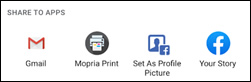
-
Tap Mopria Print
 .
A print preview screen displays. For webpages, you might need to click the print icon again.
.
A print preview screen displays. For webpages, you might need to click the print icon again.NOTE:
When you use the Share option with the Mopria Print Service , you can only send one photo or one PDF file at a time.
Can I add a printer manually to the Mopria Print Service?
When the print service does not detect a printer that you know is
connected to the correct network, you can add the printer manually
using the printer IP address.
-
Get the printer IP address from the control panel or print an Information page.
-
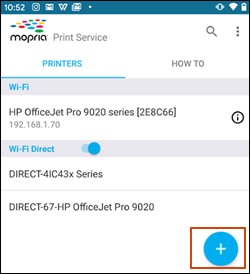
On your mobile device, open the Mopria Print Service app.
-
Tap the Plus sign.
-
Type the printer name and IP address, and then tap OK.

How do I edit or remove a printer I added manually?
Change a printer name or remove a printer from the Mopria Print
Service.
-
On your mobile device, open the Mopria Print Service app.
-
Find the printer you want to edit, and then tap the Information icon
 next to it.
-
Tap the Menu icon, and then tap Rename or Delete.
What print settings are available?
The following print settings are available when you print with the
Mopria Print Service :
-
Default print settings options for all print jobs:
-
Copies: Select the number of copies to print.
-
Color mode: Choose to print in Color or Black & White/Mono.
-
Orientation: Select Portrait or Landscape format.
-
Two-sided: Select None, Long Edge, or Short Edge. This option only displays if supported by your printer.
-
Paper size: Select from up to 30 supported sizes, including Letter, A4, 4x6-inch, 5x7-inch, 10x5-cm, or large sizes for large format printers.
-
Pages range: Select the pages to be printed in a multi-page document.
-
-
More Options:
-
Media Type: Select plain, photo, labels, or other options, depending on your printer model.
-
Borderless: Select this option to print borderless photos, depending on your printer model.
-
Print Quality: Choose Draft, Normal, or High.
-
Can I change the paper size for my print job from the Mopria Print Service ?
Yes. Make sure you select the same paper size that is loaded in the
printer.
-
Open the item you want to print, tap the Menu icon, and then tap Print.
A print preview screen displays.
-
Tap the Down arrow
 to select a printer.

-
Tap the Down arrow
 to open the print settings menu.

-
Under Paper size, tap the Down arrowto view the options.

What file formats can I print?
The Mopria Print Service supports the following file formats:
-
Print menu supported file formats
-
HTML
-
JPEG
-
PDF
-
PNG
-
TXT
-
-
Share menu supported file formatsSharing multiple PDF files or combining PDF and photo files are not supported.
-
JPEG
-
PDF
-
PNG
-
Microsoft Office files (with free DirectOffice add-on)
-
TIFF (with free DirectOffice add-on)
-
How do I monitor or cancel current print jobs?
Open the notification area to view a list of current print jobs or to
cancel a print job.
-
Monitor print jobsOn your Android device, swipe down from the top of your Android device to view your current print jobs.
-
Cancel a print jobOn your Android device, swipe down from the top of your Android device to view your current print jobs. Select the print job you want to cancel, and then tap Cancel.

What additional print settings does the Mopria Print Service support?
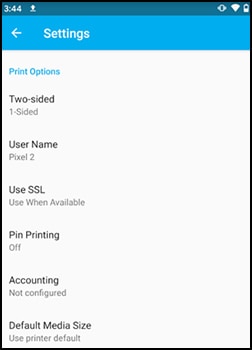
Find out what additional settings Mopria supports by accessing the
Settings menu. Setting options depend on your printer model and
wireless network.
-
On your mobile device, open the Mopria Print Service app.
-
Tap the Menu icon.
-
Tap Settings/Legal.A list of Mopria settings displays.
What if my printer is listed multiple times or I want to turn off a mobile print service?
If you have two or more print services installed and turned on, you
might see your printer listed twice in your printer list, once for
each print service that supports it. Each printer is listed twice if
it is on the network and Wi-Fi Direct is turned on. To reduce
duplication in the printer list, turn off one or more print services
on your Android device or turn off Wi-Fi Direct printer discovery in
the Mopria app.
Turn off print services on your Android device
To reduce duplication of printers in the printer list, turn off
one or more print services.
-
On your mobile device, open the Settings menu, and then open the Print menu.
-
Android 7.0 and later: Tap Connected devices, tap Connection preferences, and then tap Printing.
-
Android 6.0 and earlier: Tap More, More networks, More settings, or NFC and sharing, and then tap Print or Printing.
-
-
Select the print service you want to turn off, and then tap Off.
Turn off discovery of Wi-Fi Direct printers in the Mopria app
To reduce duplication of printers in the printer list, turn off
discovery of Wi-Fi Direct printers.
-
On your mobile device, open the Mopria Print Service app.
-
If the Wi-Fi Direct toggle is on, turn it off.

Can I use a USB cable to print from my Android device?
No. The Mopria Print Service does not support printing via USB cable.
Where can I get more information about the Mopria Print Service ?
To learn more about the Mopria Print Service , open the app, tap
the Menu icon , and then select one of the options in the list.
, and then select one of the options in the list.
What other mobile printing solutions can I use with my Android device?
For more information about other mobile printing solutions for your
Android device, go to HP Mobile Printing.
https://support.hp.com/


Comments
Post a Comment