HP Laser Printers - Printing Documents (Windows)
HP Laser Printers - Printing Documents (Windows)
This document is for the HP Laser 100, 150, MFP 130, 170 printer series
and computers with Windows.
Print documents from a Windows computer and change any related print job
settings.
Printing a document
Open the print window to change print job settings for best results.
-
Before printing, adjust text font and size, choose layout options, and change any other appearance settings.
-
In the app you created the document in, click File or the Menu icon (WordPad), and then click Print to open general print settings.
-
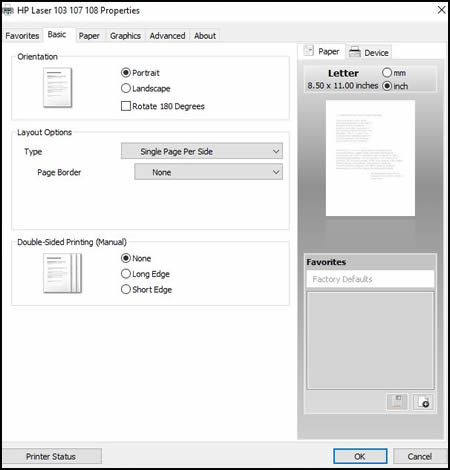
To access advanced print settings, click Printer Properties, Properties, or Preferences.The Properties window opens.
-
Change the following layout and paper settings for your print job. Menu names and available settings vary by printer.
NOTE:
If the Properties window has a Favorites tab, select one of the document print job shortcuts that has essential settings already selected for you.SettingLocationPortrait or landscape orientationSelect Portrait for vertical prints or Landscape for horizontal prints.Orientation menu on the Basic tabPaper typeSet the paper type you are using, such as plain, brochure, or other specialty types, so the printer properly prints on the paper.Type menu on the Paper tabPaper sizeSelect the Original size of paper in the printer, such as letter or legal paper.Make sure to select Same as Original Size in the Output Size menu.Original Size and Output Size menus on the Paper tabSome newer printers support more paper options. Go to Creating Custom Paper Sizes for more information.Print on both sides of the page (duplexing)Depending on the printer model, you can automatically print on both sides of the paper, or set up the print job to manually flip the pages.Double-sided Printing menu on the Basic tabThe Favorites tab might include shortcuts to print on both sidesGo to Printing on Both Sides of the Paper (Windows) for detailed steps on how to load and flip the paper for your printer type. -
Change the following quality and color settings for best printing results. Menu names and available settings vary by printer.SettingLocationQuality: Measured in print resolution dots per inch (DPI). Higher DPI produces clearer and more detailed prints, but slows print speed and may use more ink.
-
Normal: Default quality setting suitable for most print jobs
-
Best: Better DPI than Normal
Advanced on the Document Type menu on the Graphics tabEconomode: Lowest DPI typically used when ink cartridge levels are low or when high quality prints are not neededEconomode menu on the Graphics tabPrinting in color or grayscale: The following settings might be available, depending on the printer model:-
Color: Uses all cartridges to print documents with color text or images
-
Grayscale: Printer uses ink from all cartridges to produce a wider range of black and grey tones; suitable for high quality black and white prints
Select Color or Grayscale on the Graphics tab -
-
Click OK, then click Print.
Frequently asked questions
Read frequently asked questions about printing documents with a Windows
computer.
How do I save print settings as a new favorite or as the defaults for future print jobs?
Create a new custom favorite in Properties or set print job defaults
in the HP driver.
Create a new favorite
Create a new favorite (print settings shortcut) in Properties.
-
In the app you created the document in, click File or the Menu icon
 (WordPad), then click Print to open
general print settings.
(WordPad), then click Print to open
general print settings.
-
Click Printer Properties, Properties, or Preferences.
-
Change any of the settings.The settings you select display in the Favorites window on the lower-right of the Basic, Paper, Graphics, or Advanced tab.

-
In the Favorites window, click the Add icon

-
Type a name and description, select an icon, and then click OK to save the new favorite.The favorite is added to the Favorites tab.
Set default settings for all print jobs
Set the default settings for all print jobs in Windows.
-
Search Windows for control panel, click Control Panel in the search results, and then click Devices and Printers.
-
Right-click the icon for your printer, and then click Printer Properties.
-
Click the Advanced tab, and then click Printing Defaults.
-
Change any settings you want as defaults, and then click OK.
Why are the letters too small when printing documents or web pages?
If printouts are too small or the letters are hard to read, change the
font size settings in the application or web browser you are printing
from to resolve the issue.
Small font in Word or WordPad documents
Use the font size menu to increase the font size in Microsoft word
processing apps.
-
Open the document, then press the Ctrl + A keys to select all the text in the document.
-
Select a larger font size from the font settings menus.Figure : Example of the font type and size menus in Windows document applications

Small font or printout size printing web pages
Read the steps for your web browser to print web pages in a
satisfactory size.
NOTE:Not all websites support size changes through web browser settings. If these settings do not change output size, copy and paste the web page into a document application such as Word or WordPad to adjust the printout size.
Internet Explorer
-
Change text size: In the browser menu bar, click Page, click Text size, and then select a larger font size option in the menu.
-
Change the page size: In the Print > Page setup window, remove the check from Enable Shrink-to-Fit setting. Additionally, a range of printout sizes are available in the Print > Print preview window.
Chrome
-
Change text size: Click the Settings icon
 , click Show advanced settings, and then select a
larger font size in the Web content section.
, click Show advanced settings, and then select a
larger font size in the Web content section.
-
Change the page size: Click the Settings icon, and then click the Plus sign + in the Zoom setting to make the page larger.
Microsoft Edge
Click the Settings icon  , click Print, and then select a larger printout size in
the Scale setting.
, click Print, and then select a larger printout size in
the Scale setting.
, click Print, and then select a larger printout size in
the Scale setting.
Firefox
-
Change text size: Click the Settings icon
 , click Options, click Content, and then select
a larger font size in the Fonts & Colors section.
, click Options, click Content, and then select
a larger font size in the Fonts & Colors section.
-
Change the page size: In the Print > Page setup window, remove the check from Shrink-to-fit Page Width setting. Additionally, use the Scale drop down menu in the Print window to select a larger printout size.
Small printouts from Adobe PDF Reader
In the Print window, click Size in the Paper Size &
Handling section, and then select Actual Size or choose
a larger size in the Custom Scale box.
How do I get the HP print driver and software?
If you cannot find all the available print settings, you might not
have the full feature HP driver installed on the computer. Download
the latest driver from the HP Software and Driver Downloads page.
-
Turn on the printer.
-
If your printer is connected to the computer with a USB cable, disconnect the cable from the printer. The software installation prompts you to connect the cable if needed.
-
Go to HP Customer Support - Software and Driver Downloads.
-
If a Let's identify your product to get started page displays, click Printer, type your printer model number, and then click Submit.The software results page for your printer displays with the default operating system selected.
-
If you need to change the operating system, click Change, select your version, and then click Change.
-
Under the Driver heading, click Download.
-
During the installation, select the Typical or Recommended type of installation when prompted by the software installer.
How do I print documents from my phone or tablet?
Most HP printers connected to your local wireless network support
printing from a mobile device that is connected to the same network.
Go to one of the following documents for steps and requirements to
print with HP apps or built-in print features.
https://support.hp.com/


Comments
Post a Comment