HP Laser MFP 130, 1000 Printers - Printing Self-Test Pages
HP Laser MFP 130, 1000 Printers - Printing Self-Test Pages
This document is for HP Laser MFP 131a, 133pn, 135a, 135ag, 135r, 135w,
135wg, 136a, 136nw, 136w, 137fnw, 137fwg, 138fnw, 138p, 138pn, 138pnw,
1136w, 1139a, 1188a, 1188w, 1188nw, and 1188pnw printers.
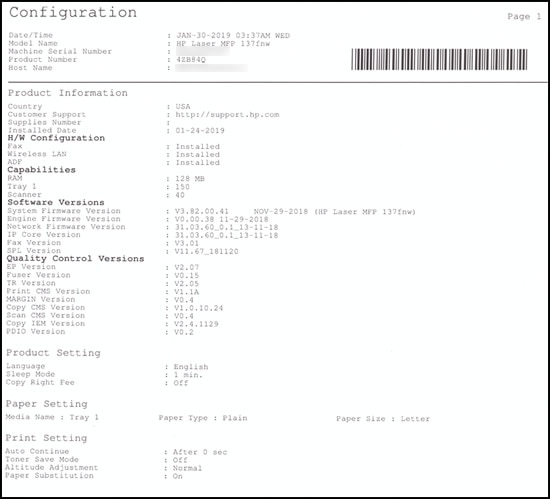
This document contains instructions for printing the Configuration report,
Network Configuration report, Supplies Information report, and Usage
Counter report.
Print a Configuration report
Print a Configuration report for important information such as the printer
information, firmware version, and settings.
-
Turn on the printer.
-
On the printer control panel, press the Menu button.
-
Select System Setup, and then press OK.
-
Select Report, and then press OK.
-
Select Configuration, and then press OK.
-
Select Yes, and then press OK.The Configuration report prints.
Print a Network Configuration report (wired and wireless models only)
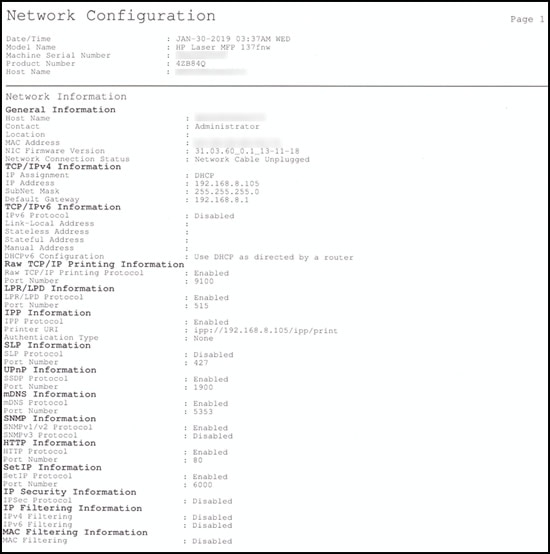
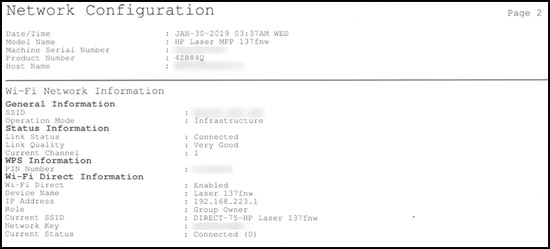
Print a Network Configuration report for important information such as the
printer IP address, MAC address, and Wi-Fi network name (Host Name.
-
Turn on the printer.
-
On the printer control panel, press the Menu button
 .
.
-
Select Network, and then press OK.
-
Select Network Conf., and then press OK.
-
Select Yes, and then press OK.The Network Configuration report prints on two pages.
Print a Supplies Information report
Print a Supplies Information report for information about the estimated
toner level (life remaining), toner cartridge numbers, and consumable part
life.
-
Turn on the printer.
-
On the printer control panel, press the Menu button.
-
Select System Setup, and then press OK.
-
Select Report, and then press OK.
-
Select Supplies Info., and then press OK.
-
Select Yes, and then press OK.The Supplies Information report prints.

Print a Usage Counter report
Print a Usage Counter report for information about the number of pages
printed, copied, and scanned.
-
Turn on the printer.
-
On the printer control panel, press the Menu button.
-
Select System Setup, and then press OK.
-
Select Report, and then press OK.
-
Select Usage Counter, and then press OK.
-
Select Yes, and then press OK.The Usage Counter report prints.

https://support.hp.com/


Comments
Post a Comment