HP Laser MFP 130, 1000 Printers - Printer Does Not Pick Paper
HP Laser MFP 130, 1000 Printers - Printer Does Not Pick Paper
This document is for HP Laser MFP 131a, 133pn, 135a, 135ag, 135r, 135w,
135wg, 136a, 136nw, 136w, 137fnw, 137fwg, 138fnw, 138p, 138pn, 138pnw,
1136w, 1139a, 1188a, 1188w, 1188nw, and 1188pnw printers.
During a print, copy, fax, or scan job, the printer does not feed paper
from the input tray or automatic document feeder (ADF). The printer might
make noises as though it is printing, but no paper moves through it.
Printer does not pick up paper from the input tray
A Paper is empty in tray message displays and the printer does
not pick up paper from the input tray.
Step 1: Check the paper, and then reload it
Paper feed issues might result from using ripped, dusty, curled,
wrinkled, or bent paper. The quality of the paper can also make a
difference. Follow these guidelines to help avoid the issue.
-
Use only good quality paper that meets printer specifications.
-
Store all paper in a dry, cool place. Paper feed issues occur more often in humid climates.
-
Wait for the printer to complete a job or the Attention light to blink before you reload the paper.
Make sure the paper you are using is in good condition, stacked neatly
in the tray, and the paper path and tray are free from obstructions.
-
Remove the paper stack from the input tray.
-
Remove any severely bent, wrinkled, or torn paper from the stack.
-
Holding the paper stack in both hands, flex the stack to form a U shape, and then flex the stack in the opposite direction to loosen stuck paper sheets.

-
Load up to 150 sheets of paper with the print side up with the top edge towards the printer.

-
Slide in the paper guide until it touches the edge of the stack of paper.

Try to print. If the error persists, continue to the next step.
Step 2: Check the paper size and type settings
Change the input tray settings from the printer control panel or the
program you are trying to print from.
Windows
Change the paper size and type from the program you are printing
from.
-
In the program you are trying to print from, click File, and then click Print.The Print window opens.
-
Open the Properties dialog box.Depending on the software program, the button might be Properties, Options, Printer Setup, Printer, or Preferences.
-
Click the Paper tab, and then select the paper type from the Type drop-down menu.
-
Click Output Size, and then select a paper size from the drop-down menu.
-
Click OK to apply the settings, and then click Print.
If the issue persists, continue to the next step.
Mac
Change the paper size and type from the program you are printing
from.
-
On your Mac, open the photo or document you want to print.
-
Click File, and then click Print.
-
Make sure your printer is selected.
-
If you do not see options on the Print dialog box, click Show Details.
-
Select your paper size from the Paper Size drop-down menu.
-
Select your paper type from the Paper Type/Quality drop-down menu.
-
Click Print.
If the issue persists, continue to the next step.
Step 3: Clean the pickup roller
Dust, paper fiber, and other debris might accumulate on the pickup
roller and cause paper feed issues. Clean the pickup roller inside the
printer, and then try to print again.
-
Turn off the printer, unplug the power cord from the back of the printer, and then wait for the printer to cool.
WARNING:
You must disconnect the power cord before reaching inside the printer to avoid risk of injuries or electric shock. -
Remove any paper from the input tray.
-
Lightly dampen a lint-free cloth with bottled or distilled water, and then squeeze any excess liquid from the cloth.
-
Clean the pickup rollers, applying a moderate amount of pressure.

-
Allow the pickup rollers to dry completely (approximately 10 minutes).
-
Plug the power cord into the rear of the printer, and then turn on the printer.
Try to print. If the error persists, continue to the next step.
Step 4: Reset the printer
Sometimes an error persists even though there is no paper feed issue.
Clear the error by resetting the printer.
-
Turn the printer on, if it is not already on.
-
Wait until the printer is idle and silent before you continue.
-
With the printer turned on, disconnect the power cord from the rear of the printer.
-
Unplug the power cord from the wall outlet.
-
Wait at least 60 seconds.
-
Plug the power cord back into the wall outlet.
NOTE:
HP recommends connecting the printer power cord directly to the wall outlet. -
Reconnect the power cord to the rear of the printer.
-
Turn on the printer, if it does not automatically turn on.The printer might go through a warm-up period. The printer lights might flash, and the carriage might move.
-
Wait until the warm-up period finishes and your printer is idle and silent before you proceed.
Try to print. If the problem persists, continue to the next step.
Step 5: Service the printer
Service or replace your HP product if you completed all preceding
steps.
To see if your product is still under warranty, go to the warranty
check
website http://www.support.hp.com/checkwarranty. Contact HP
Support to schedule a repair or replacement. If you are in Asia
Pacific, Contact HP Support to find a local service center
in your area.
Repair fees might apply for out-of-warranty products.
Printer does not pick up paper from the ADF (only 133, 137, 138, 1188pnw printers)
A Paper is empty in tray message displays and the printer does
not pick up paper from the automatic document feeder (ADF) tray.
Step 1: Clean the ADF rollers and separator pad
Clean the paper feed rollers in the ADF.
-
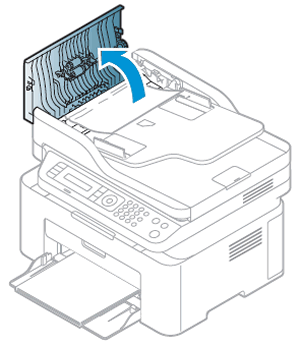
Lift the ADF cover.
-
Lightly dampen a clean, lint-free cloth with distilled water, and then squeeze any excess liquid from the cloth.
-
Gently clean the separator pad and rollers with the damp cloth, applying a moderate amount of pressure.

-
Rollers
-
Separator pad
-
-
Allow the separator pad and rollers to dry completely (approximately 10 minutes).
-
Close the ADF cover.
Try to print. If the error persists, continue to the next step.
Step 2: Reset the printer
Sometimes an error persists even though there is no paper feed issue.
Reset the printer, and then try to print.
-
With the printer turned on, disconnect the power cord from the printer.
-
Unplug the power cord from the power source.
-
Wait 60 seconds.
-
Reconnect the power cord to a wall outlet and to the printer.
NOTE:
HP recommends plugging the printer directly into a wall outlet.
Try to print. If the error persists, continue to the next step.
Step 3: Service the printer
Service or replace your HP product if the issue persists after
completing all the preceding steps.
Go to Contact HP Customer Support to schedule a product
repair or replacement. If you are in Asia Pacific, you will be
directed to a local service center in your area.
https://support.hp.com/


Comments
Post a Comment